3.1. Python installation#
In this course, we will use Python 3.12.2 because we want to utilize an autograder in Jupyter Notebook to provide you with instant feedback on your answers to some of the questions. It is very common for an OS, Windows or otherwise, to have multiple Python installations, so you may install different versions of Python on your computer. Python 3.13, for example, allows you to exit the Python shell using exit instead of exit(), which you may prefer when working on other projects.
3.1.1. Check Python Version#
Let us check what version(s) of Python are installed in your computer already.
Windows does not ship with a Python version by default. However, since Python is widely used, your computer may already have some versions of Python installed. You use the Windows Python Launcher (py.exe) in PowerShell and the where python command at the Command Prompt (cmd.exe) to see the current Python installation(s) (here I have a version 3.12 installed already).
With Windows PowerShell, where python does not give us anything, but the py launcher shows all installations and the default Python:
PS C:\Users\[user]> where python
PS C:\Users\[user]> py -0
 -V:3.13          Python 3.13 (64-bit)
 -V:3.13-arm64    Python 3.13 (Store)
 -V:3.12          Python 3.12 (64-bit)
 -V:3.10 *        Python 3.10 (64-bit)
PS C:\Users\[user]>
With Command Prompt, the py launcher gives us the same information, and where python gives us the paths of the Python executives.
C:\Users\[user]>py -0
 -V:3.13          Python 3.13 (64-bit)
 -V:3.13-arm64    Python 3.13 (Store)
 -V:3.12          Python 3.12 (64-bit)
 -V:3.10 *        Python 3.10 (64-bit)

C:\Users\[user]>where python
C:\Users\[user]\AppData\Local\Programs\Python\Python312\python.exe
C:\Users\[user]\AppData\Local\Programs\Python\Python313\python.exe
C:\Users\[user]\AppData\Local\Programs\Python\Python310\python.exe
C:\Users\[user]\AppData\Local\Microsoft\WindowsApps\python.exe

C:\Users\[user]>
If you are using macOS, you already have a version of Python shipped with the OS. You may issue the following commands in the command line (using Terminal.app) to see the version(s) of Python you have in the current system. In most cases, you may need to use python3 instead of python. Also, which python3 will give you the path of the Python executable.
[user]@[host]:~/workspace/dsm$ python3 --version
Python 3.12.2
[user]@[host]:~/workspace/dsm$ which python3
/Library/Frameworks/Python.framework/Versions/3.12/bin/python3
[user]@[host]:~/workspace/dsm$
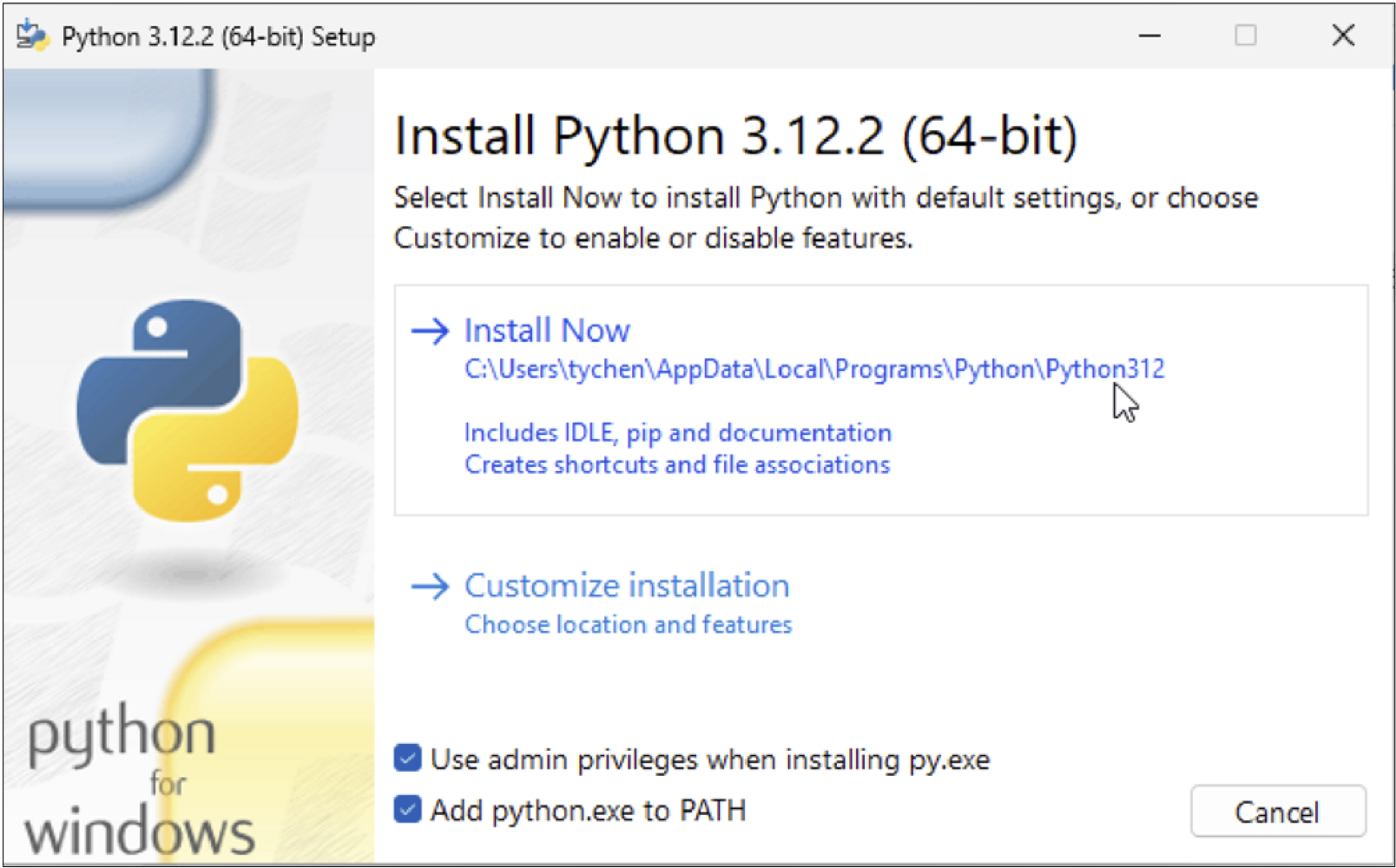
Fig. 3.6 Python Installation Options in Windows#
3.1.2. Choose Python Version#
3.1.2.1. Choose Python version temporarily#
In case you have more than one Python version installed, you may need to control the version of Python that you use for your projects. If the default Python is different from the desired version, you may use the version suffixes to designate the desired Python version. This helps, e.g., when you need to create a virtual environment and you need to designate a Python version such as 3.12.
In Windows, you may use the Python launcher to decide which Python version to use. This means, instead of issuing the python command, you use py -Major.Minor to control which Python version to use. For example, to use version 3.12, we issue:
C:\Users\[user]>py -3.12
Python 3.12.2 (tags/v3.12.2:6abddd9, Feb  6 2024, 21:26:36)
[MSC v.1937 64 bit (AMD64)] on win32
Type "help", "copyright", "credits" or "license" for more information.
>>>
In macOS, we append the Python version number in the format of Major.Minor when issuing python to choose the Python version to use:
$ python3.12
Python 3.12.2 (v3.12.2:6abddd9f6a, Feb  6 2024, 17:02:06)
[Clang 13.0.0 (clang-1300.0.29.30)] on darwin
Type "help", "copyright", "credits" or "license" for more information.
>>>
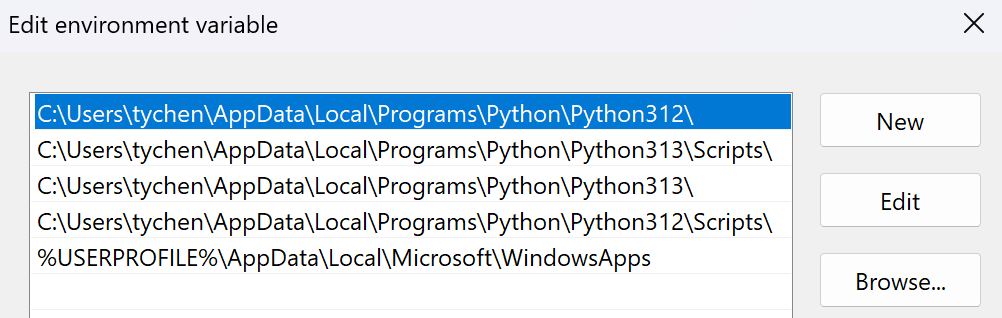
Fig. 3.7 The top Python path is the default Python#