

2.1. The CLI#
Having some knowledge of using the command line interface (CLI) is necessary when learning how to code. A CLI is often referred to, interchangeably, as the command prompt in Windows, shell in Linux/macOS, or command line or terminal in general. Major operating systems (OSs) all have CLIs for users to interact with the operating system by issuing text commands in the CLI rather than using GUIs for speed, automation, and granular control. (For a discussion on terminology such as terminal, console, and shell, see here .
Different OSs are shipped with different CLIs, which include:
Terminal applications (or “terminal emulators” as they emulate the locally-attached dumb terminals) to access the shells and
Shell interpreters for the user to issue commands to communicate with the OS.
In summary, terminals are programs like Windows PowerShell/Command Prompt, macOS Terminal.app, or Linux Terminal that you open to access the shell. A shell is a command-line interpreter and scripting language that provides a user interface to the OS. Note that a GUI is also considered a shell as it interfaces with the OS.
While a terminal can support multiple shells, each shell performs the same core function of interacting with the operating system. Major OSs and their default or commonly used shells are:
OS |
Terminal Emulator |
Common Shell |
|---|---|---|
Windows |
Windows Terminal |
PowerShell, Batch (command prompt, CMD) |
macOS |
Terminal |
Bash, Zsh |
Linux distributions |
GNOME, Konsole |
Bash |
2.1.1. The File System#
Unix-like OSs (such as Unix, macOS, and Linux) systems are file-based, meaning the design principle dictates that everything in the system is a file, and the files are organized as a tree-like file system structure following the Filesystem Hierarchy Standard . In the command line, a file path is then used to access a file or a directory/folder in the computer’s hierarchical file structure in the absence of a GUI.
The file system structure begins with the root (/), which contains several default first-level directories representing various functionalities. For example, one of the first default locations after logging in is the user’s home directory, which is specified as /home/USER_NAME. A typical Unix-like system would have a system directory structure similar to Fig. 2.1. Note that in Fig. 2.1, there is a number of first-level directories under the root directory, and there are two user directories (“bill” and “patrick”) under the home directory, where all user accounts are created under.
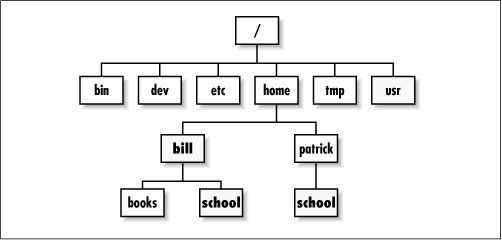
Fig. 2.1 A Linux Directory Tree Example #
Similarly, in Windows, files and directories are organized in a hierarchical structure; except that drive letters such as C: and D: are used for separate file structure roots, while Linux uses a unified, hierarchical structure starting from a single root (/) for all drives and devices. In Fig. 2.2, you see that, in File Explorer, if you click on C:, there is a number of folders and files organized under the C: drive, just like the root in Linux.
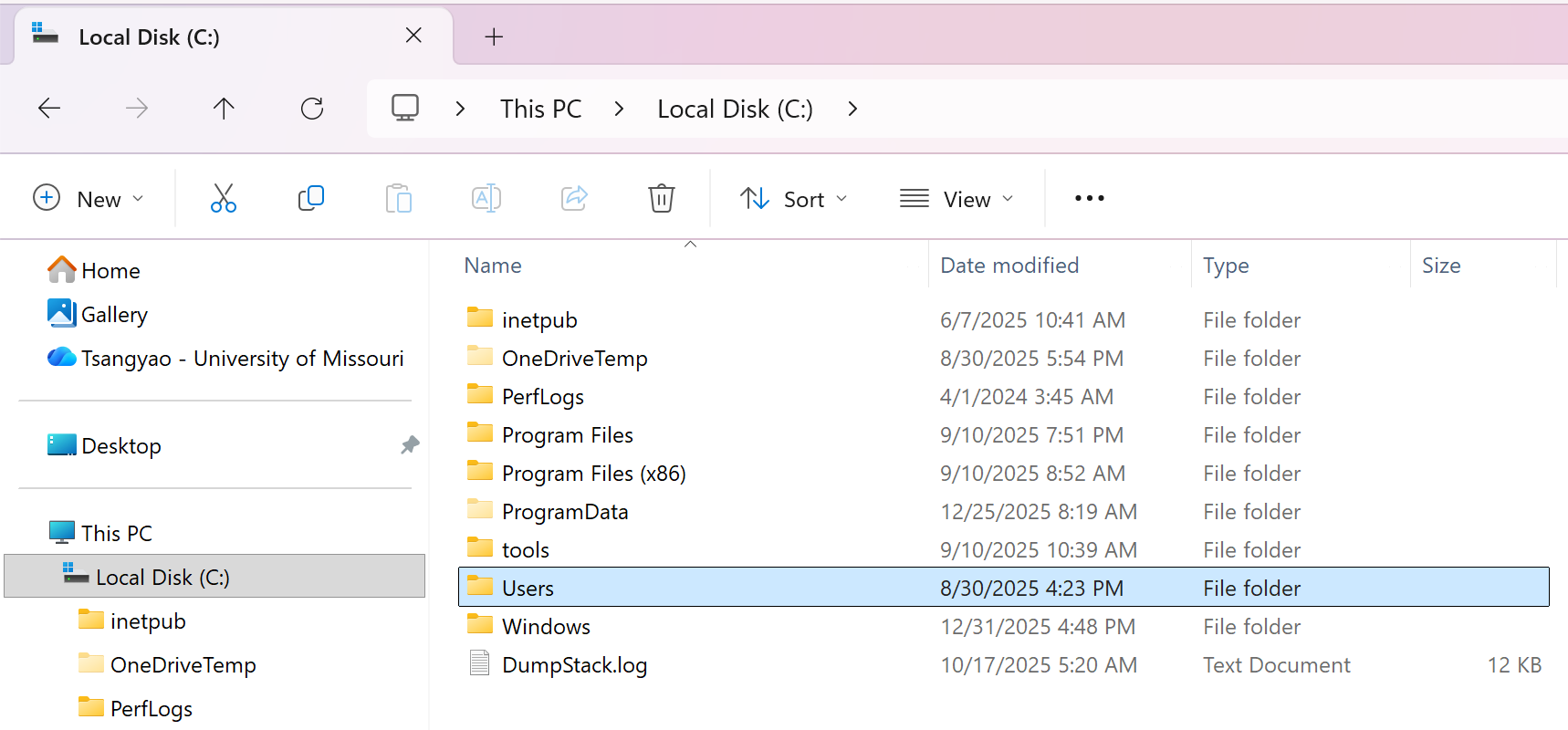
Fig. 2.2 Windows 11 Directory C: Drive#
If you click to expand the Users folder, File Explorer will display the folders (usernames) contained within it. When you select to highlight a username, you will see all the files and directories of that user. In this example in Fig. 2.3, a folder called workspace is highlighted.
Note that, in the CLI, this user folder is the default location when a user first logs in.
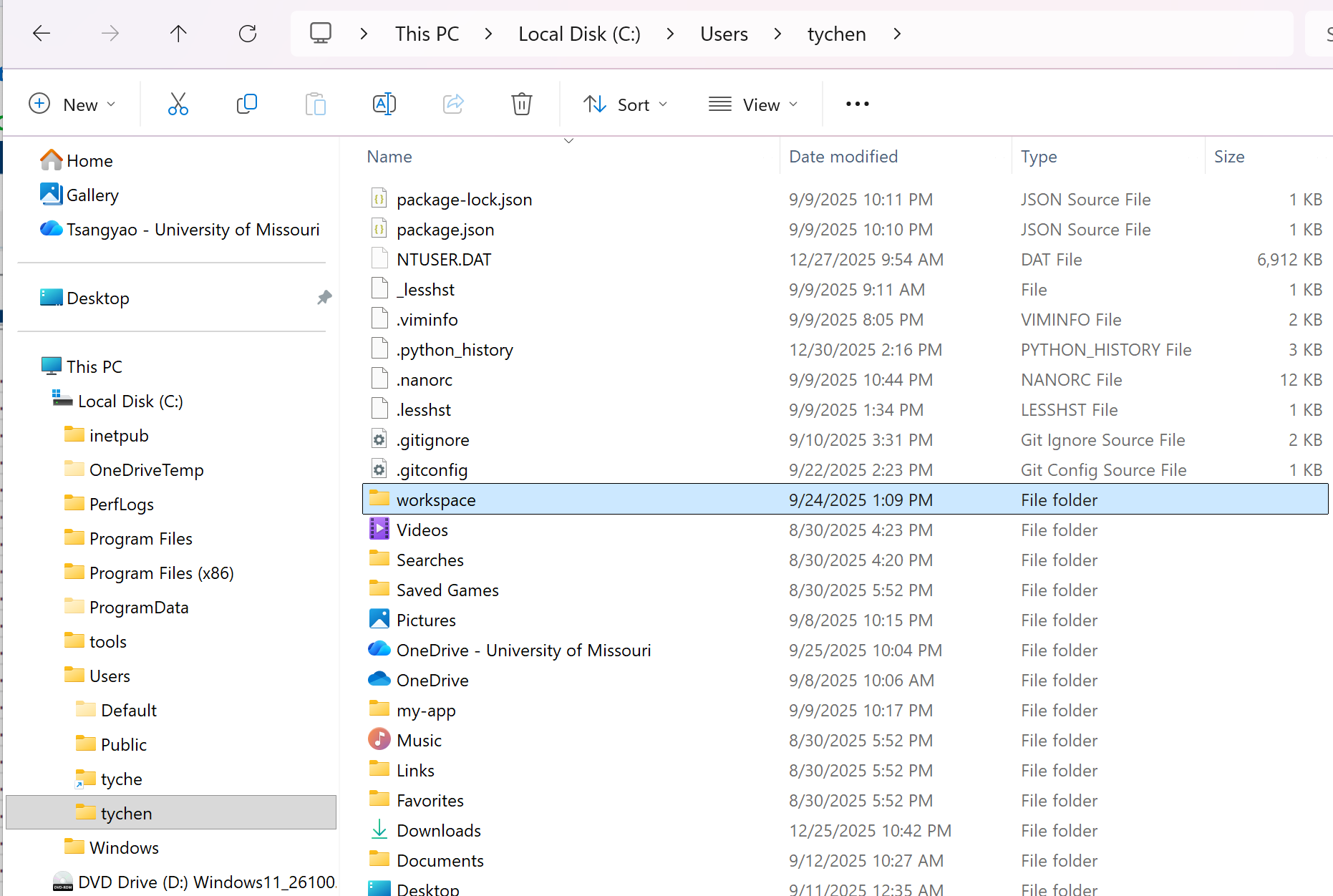
Fig. 2.3 Windows 11 Directory Hierarchy from C: Drive to User Home Directory#
2.1.2. Command Line Basics#
When you open the CLI terminal application, you mainly use the keyboard, rather than a mouse, to issue text commands (you can still mostly use the mouse to highlight and copy/paste text). In order to do that, some special pathname characters are commonly used (and are supported by major shells such as Bash and PowerShell):
/is the root of the system’s file directory tree structure~is the user’s home directory..is the pathname of the directory one level up from the current directory.means the current directory, but when placed at the beginning of a file, it makes the file a hidden file.
In addition to pathnames, to start navigating around the file system directory structure, some of the essential commands are helpful:
ls(list storage) to show the files and directories in the current directorycdpath (change directory) to change in the path directory in the directory tree structure (path “..” means the upper level directory).touchfilename to create an empty file.rmfilename to remove a file.mkdirfoldername (make directory) to create an empty directory.pwd(print working directory) to see the full path of the current location.catfilename to display the contents of a file.cpsource_file destination to copy a file^+C(hold the Control key and then hit the C key) to terminate a process.exitto exit out of the terminal app.
To start a terminal session in Windows, you search for PowerShell, and you will see Windows PowerShell as an App. For macOS/Linux, you search for Terminal.app. You then mouse-click on the application or press Enter to open the terminal application and access the shell.
In the shell, you see a command prompt (e.g., [user]@computer_name:~$ for macOS/Linux or C:\Users\[user]> for Windows), followed by a cursor (may blink), which indicates where you type to issue your commands for execution.
In Windows, if you type the command ls and hit Enter to list storage, you see the directories and files listed:
PS C:\Users\[user]> ls
    Directory: C:\Users\[user]
Mode                 LastWriteTime         Length Name
----                 -------------         ------ ----
d-----        12/25/2025  10:46 PM                .dotnet
d-----         8/30/2025  10:25 PM                .ipython
d-----         8/31/2025  10:53 AM                .jupyter
d-----         9/11/2025  12:01 AM                .ssh
d-----          9/4/2025   7:59 PM                .vscode
d-r---         8/30/2025   5:52 PM                Contacts
d-r---         9/11/2025  12:35 AM                Desktop
d-----         9/12/2025  10:27 AM                Documents
...
...
or, if you issue the same ls command in your macOS shell (default zsh or bash):
[user]@computer:~$ ls
Applications Documents    Google Drive Library      Music        Public       teaching     workspace
Desktop      Downloads    GoogleDrive  Movies       Pictures     research     temps
[user]@computer:~$
To see the file details like in PowerShell, you need to issue the ls command with the long format option -l:
[user]@[computer]:~$ ls -l
total 0
drwxr-xr-x   10 [user]  staff   320 Dec 18 15:14 Applications
drwx------@  58 [user]  staff  1856 Dec 19 15:50 Desktop
drwx------@  11 [user]  staff   352 Oct  2 22:46 Documents
drwx------@ 271 [user]  staff  8672 Dec 28 22:36 Downloads
lrwx------    1 [user]  staff    66 Dec 27 09:56 Google Drive -> /Users/[user]/Library/CloudStorage/GoogleDrive-[user]@gmail.com
drwxr-xr-x@  21 [user]  staff   672 Dec 27 09:56 GoogleDrive
drwx------+ 139 [user]  staff  4448 Oct  6 17:41 Library
...
...
2.1.3. The Python Shell#
While shell languages such as bash and PowerShell communicate with operating systems, a programming language may have its own “shell” or REPL (Read-Eval-Print Loop), which serves as a command-line interactive environment for running code written in the programming language. This means that when you type code, the REPL interprets it and displays the results immediately. A REPL perfect for testing snippets, learning syntax, and exploring modules without creating files. Different languages have different REPLs, for example:
Language |
REPL |
|---|---|
Python |
Python shell |
Java |
JShell |
C# |
CSharpRepl |
The Python interpreter features a built-in interactive shell (the Python shell or “the interpreter”), which is the standard Python REPL and is widely used for quickly testing code. To access the Python shell, you can start your terminal (PowerShell in Windows Terminal or Terminal in macOS) and type python or python3 with Enter. You will see the primary prompt (aka, chevrons), >>>, where you input code for immediate evaluation from the interpreter:
PS C:\Users\[user]> python
Python 3.12.2 (tags/v3.12.2:6abddd9, Feb  6 2024, 21:26:36) [MSC v.1937 64 bit (AMD64)] on win32
Type "help", "copyright", "credits" or "license" for more information.
>>> 1 + 1
2
>>>
[user]@[computer]:~$ python3
Python 3.12.12 (main, Oct  9 2025, 11:07:00) [Clang 17.0.0 (clang-1700.3.19.1)] on darwin
Type "help", "copyright", "credits" or "license" for more information.
>>> 1 + 1
2
>>>
In the Python shell, you may start experiencing Python programming by printing “hello, world”:
PS C:\Users\[user]> python
Python 3.12.2 (tags/v3.12.2:6abddd9, Feb  6 2024, 21:26:36) [MSC v.1937 64 bit (AMD64)] on win32
Type "help", "copyright", "credits" or "license" for more information.
>>> print("hello, world")
hello, world
>>>
[user]@[computer]:~/workspace/dsm$ python
Python 3.13.7 (main, Aug 14 2025, 11:12:11) [Clang 17.0.0 (clang-1700.0.13.3)] on darwin
Type "help", "copyright", "credits" or "license" for more information.
>>> print("hello, world")
hello, world
>>>